Night shooting often forces a tradeoff between clean images and preserved texture. Modern camera apps try to help by applying noise reduction to JPEG or HEIC files, but that automatic fix can blur fine detail.
Shooting in RAW on an iPhone hands control back to the photographer. RAW keeps sensor data intact so you can shape exposure, contrast, and sharpness without losing original texture.
This short guide will give practical tips to help you reduce noise smartphone photography while keeping detail. Learn how shutter speed, ISO, and light management affect your final image.
Read on to master manual settings and post-processing steps that turn grainy shots into clear photos with rich texture and better contrast.
Understanding the Science of Digital Noise
Small sensor physics dictate how much visible grain appears in low-light frames. This section breaks down the main technical limits so you can set your camera with intent.
The Impact of Sensor Size
Smaller sensors have tinier pixels, so each pixel collects less light. That makes color speckles and mottling more likely in dark areas.
Key factors:
- Pixel size governs how much light each photosite captures.
- Closely packed pixels can cause color mottling and lower contrast.
- Smaller sensors generally show more visible grain than larger ones.
ISO Speed and Electrical Interference
When you increase ISO speed to brighten a scene, the sensor amplifies its signal. Amplification also boosts electrical interference, which shows up as luminance noise.
Understanding the signal-to-noise trade-off helps photographers choose settings that keep image quality and texture intact.
How to Reduce Noise Smartphone Photography During Capture
Good results start with what you set on the camera before the shutter fires.
Keep ISO as low as practical. On many phones, a dedicated app such as ProCamera lets you lock ISO and control shutter speed. Lower sensitivity keeps the sensor from amplifying unwanted signal.
When exposure time falls under 1/125 second, use a tripod or an anti-shake shutter release. A steady mount lets you choose a longer exposure instead of cranking ISO. Longer exposures gather more light and often yield cleaner images with better detail.
“Check your histogram. Underexposed shots hide detail and show more grain in the shadows.”
- Prioritize low ISO during capture to limit the amount noise.
- Use Pro mode or a manual app to set shutter speed and keep exposure correct.
- Tripod + long exposure beats high sensitivity for image quality.
- Consult the histogram and adjust time or aperture to protect shadow detail.
The Role of Lighting in Minimizing Grain
Lighting choices make the biggest difference when you want cleaner night photos. A sensor performs best when it receives clear, even light. That lowers the need to boost ISO or push exposure in post.
Positioning Your Subject for Optimal Light
Face your subject about three-quarters toward the light source to reveal shape and texture. This angle creates gentle contrast and helps the camera capture detail without harsh clipping.
Use a quick test: hold your palm up in front of the subject. If the highlights fall pleasingly, you’ve found a good direction for the light. If not, shift the light or the subject until the texture reads well.
- Proper lighting gives the sensor more information and improves final image quality.
- A strong, consistent light lets the camera keep lower ISO and avoids heavy grain buildup.
- Soft, directional light preserves fine lines and reduces the need for aggressive reduction in post.
- Always consider light direction and strength before you press the shutter; it’s one of the most important factors for better photos in low light.
“Control the light first, and the rest of the settings fall into place.”
Mastering Manual Camera Settings
Taking manual control of your camera unlocks predictable exposure and cleaner night images. This section shows practical steps for balancing shutter speed and using a tripod so your final image keeps texture and sharp detail.
Balancing Shutter Speed and Exposure
Set ISO to the lowest value your camera supports to keep the sensor data clean. A comparison between ISO 2500 and ISO 50 shows how much texture is preserved at low sensitivity.
Compensate with a longer shutter when needed. A slower shutter lets more light in and often yields an image with better detail and less digital amplification.
- Keep ISO low and use time to gather light.
- Use a shutter speed that captures proper exposure without clipping highlights.
- Avoid auto mode when you need consistent results for night shots.
Using a Tripod for Long Exposures
If your shutter speed drops to 1/20th of a second or slower, always use a tripod to prevent motion blur. A steady mount preserves fine details that a handheld shot would lose.
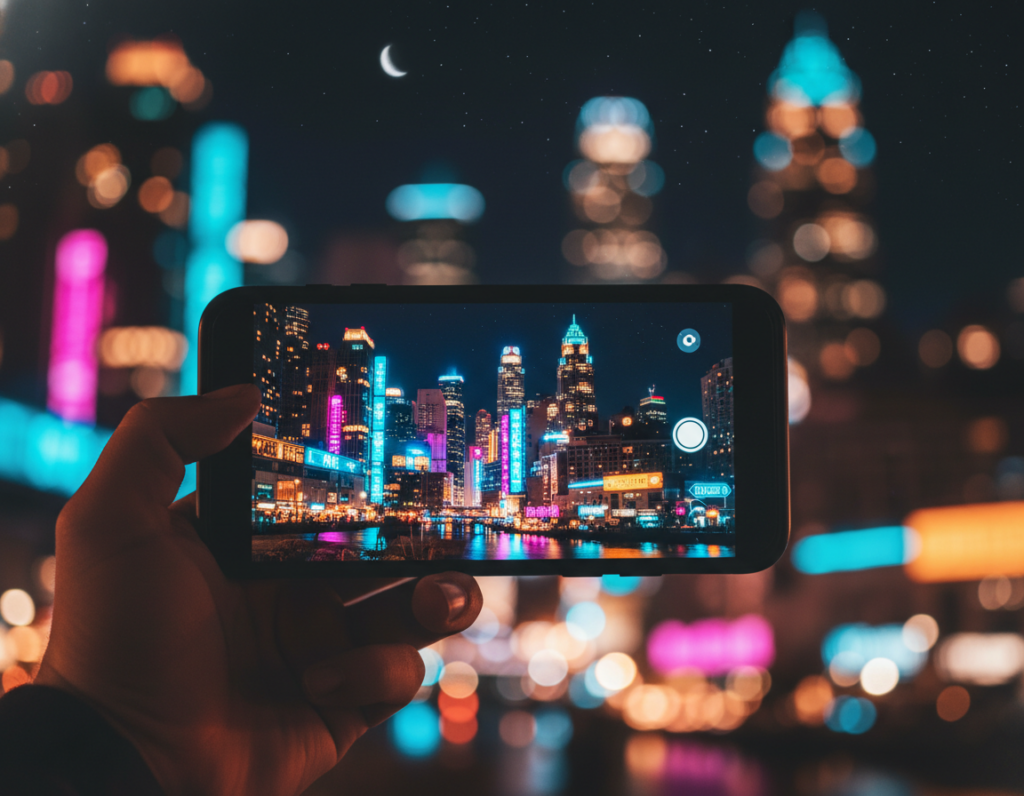
A long exposure can transform city lights and star fields into clean, rich images. Be patient and lock the camera; the result will often outperform quick, high-ISO shots.
“Aim for the lowest ISO possible, even if it means you must use a tripod for a longer exposure.”
Post-Processing Techniques for Cleaner Images
Post-capture adjustments are where a picture often finds its final balance between clarity and character. Use editing to complement good capture, not to fix poor exposure or lost pixels.
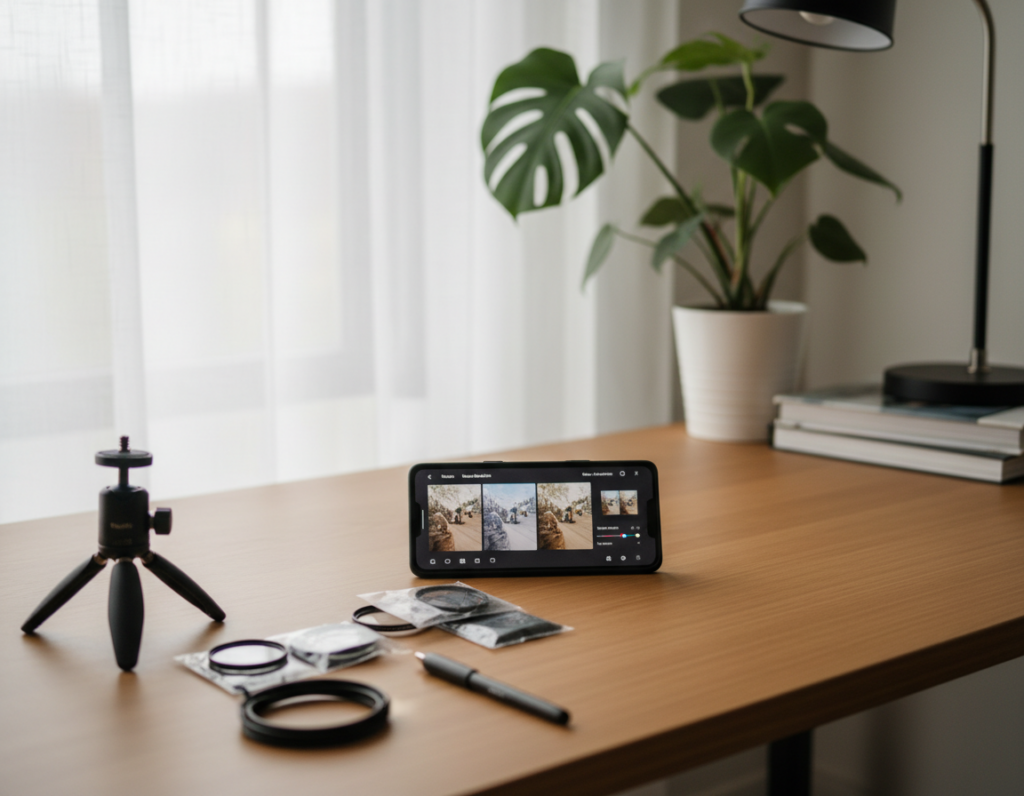
Start with Lightroom Mobile. The app gives you dedicated sliders for color and luminance noise reduction. Defaults are useful: color at 25 and luminance at 10 are a safe starting point.
Always view the image at 100% when you move a slider. That shows how the luminance noise slider smooths grain and how much detail you might lose.
- Use the luminance slider gently; pushing it too far wipes fine texture.
- Apply the detail slider to recover edges softened by heavy reduction.
- Adjust contrast if the image looks muddy after reduction to restore depth.
“Zoom in and work in small steps—professional photographers combine sliders to balance a clean image with natural-looking texture.”
Experiment with the right amount for each shot. Different images and light levels need different settings. Good photo editing is about testing sliders until the result looks natural.
Advanced Adjustments for Texture and Detail
A deliberate editing workflow helps preserve delicate lines and surface texture in low-light shots. Start by thinking of sliders as partners: one smooths, one protects.
Managing Luminance Noise
Move the luminance slider slowly to the right to apply noise reduction. Small steps give you control over the amount of smoothing.
Tip: Stop when shadows lose too much structure and switch to the detail slider to reintroduce edge clarity.
Preserving Fine Lines with Detail Sliders
The detail slider acts as a counterweight. Setting it high — for example near 75 — recovers fine lines and texture.
Expect a slight return of grain as a tradeoff. Use local masks if you need sharp edges without lifting grain across the whole image.
Smoothing Color Mottling
The smoothness control in Lightroom-like apps targets color mottling in shadow areas. Push it to unify tones while keeping luminance adjustments modest.
“Work on a large screen; small displays hide artifacts that show up in final prints.”
- Balance luminance and detail sliders for natural results.
- Preview at 100% to judge pixels and texture.
- Try a little contrast after reduction to protect edges.
Common Pitfalls When Editing Night Shots
What you do in the editor can’t fully hide flaws from a poorly exposed night image. Over-sharpening a grainy frame often makes the grain stand out more. Use a sharpening mask to protect smooth areas and only boost edges.
Relying on software to fix capture errors is another trap. If you pushed ISO too high, the camera will show mottled pixels that heavy noise reduction can wash into a plastic look.
Practical mistakes to avoid:
- Over-sharpening while visible grain remains, which exaggerates texture issues.
- Skipping a tripod at slow shutter speeds; motion blur often looks like noise.
- Pushing the luminance slider far to the right and losing surface detail.
The Redmi Note 11 is a good example of how some camera sensors struggle in low light. Learn to balance long exposure, tripod use, and careful sliders. For step-by-step capture tips and post methods, see how to avoid and reduce noise in your.
“Aim to improve image quality, not to make photos look unreal; subtle edits win every time.”
Conclusion
A strong final image relies on getting the exposure right first, then refining with subtle tools. Capture with steady support, choose an appropriate shutter speed, and lock exposure where the subject holds detail.
Post work should polish, not fix. Use Lightroom sliders—luminance and detail—sparingly. Gentle noise reduction and careful use of the detail slider keep texture while cleaning the frame.
Treat editing as the last step. Learn camera mode and practice the tips here. For more on preventing excessive artifacts in low light, see preventing excessive noise.