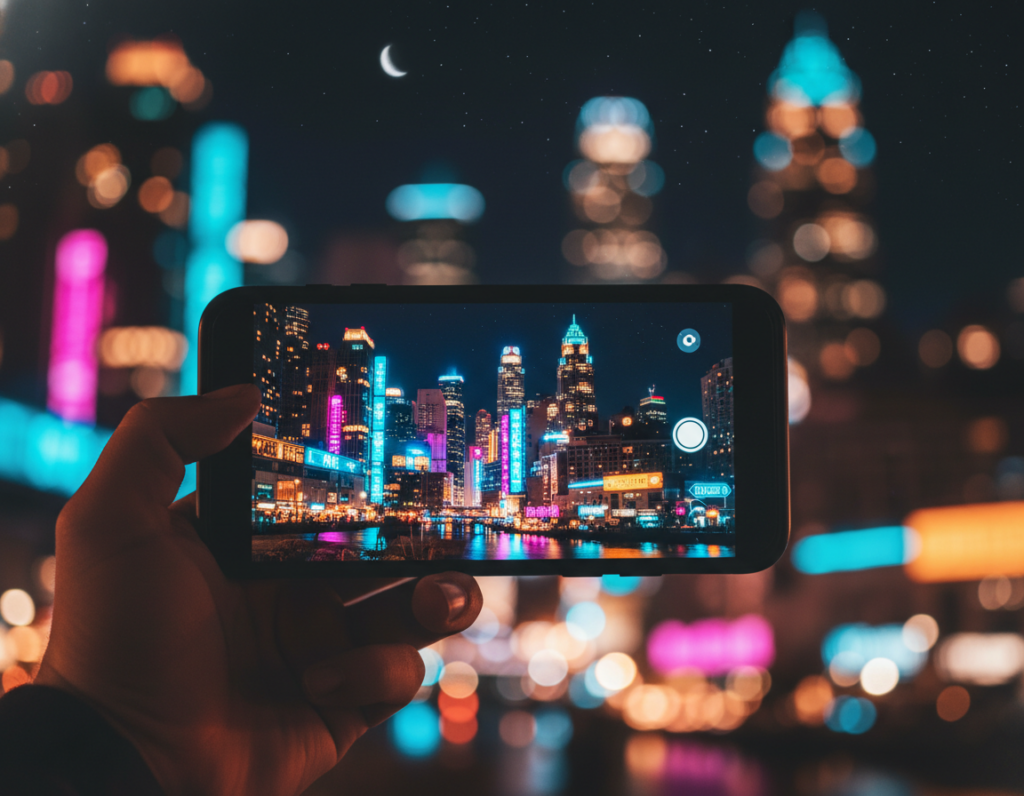
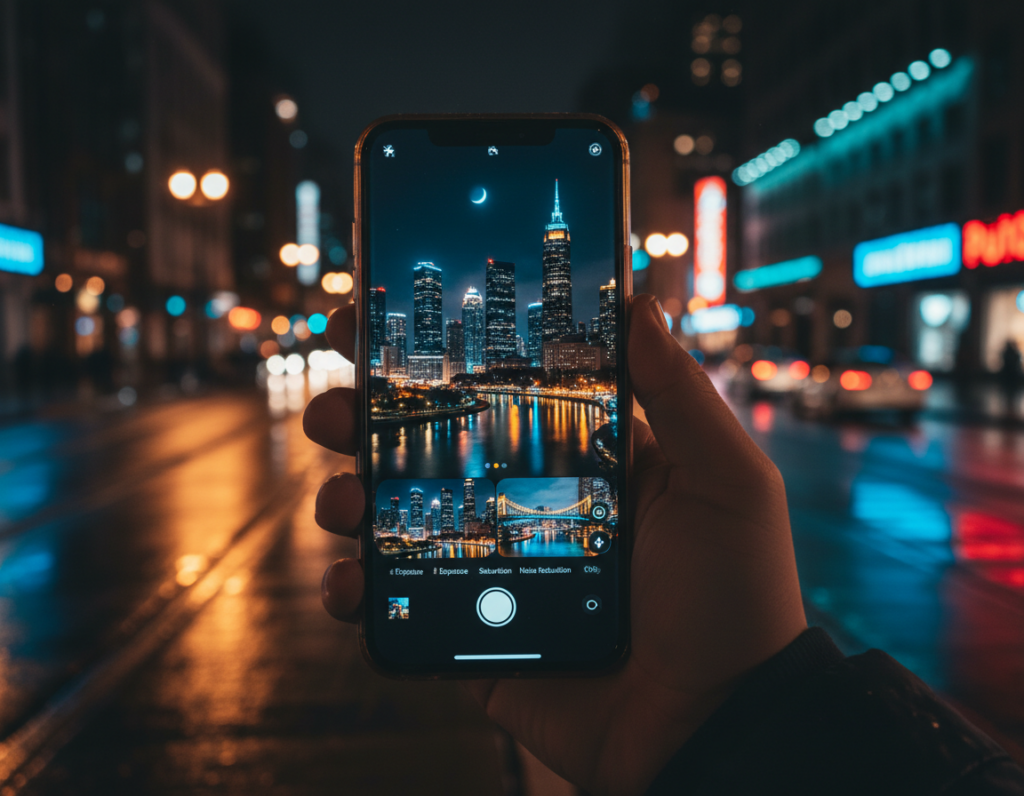
Goal: send dim mobile photos so shadow detail, texture, and color gradations stay intact. This guide shows clear steps to protect delicate dark tones that compression often destroys.
Why this matters: dim photography holds more noise and subtle tonal shifts. Apps that favor speed over fidelity often apply heavy compression. The result can be smeared shadows and muddy edges that are obvious on a desktop.
Expect choices to vary by destination. Social media, messaging, or client delivery each call for different handling. This piece outlines a practical workflow: learn what causes detail loss, prep and export correctly, pick a transfer method that keeps originals, and tweak app settings when needed.
Coverage includes iPhone and Android options, device-to-device transfers, cloud links, email limits, and file services that avoid aggressive conversion. Follow these practical tips and recipients can zoom on a desktop without seeing over-processed noise or degraded tones.
Why low-light smartphone photos lose detail online
When you send a dark shot through an app, automated routines can smooth away delicate texture in shadows. Compression tools treat noisy pixels as if they were real detail and then simplify them. That process often wipes out subtle gradients and fine edge information.
How recompression and format swaps degrade tone
Lossy compression removes what it thinks is redundant data. On a noisy night photo, that means the algorithm “averages” pixels and erases faint shadow nuance.
File size limits and automatic resizing
Platforms impose upload caps and will reduce dimensions to meet limits. Smaller files mean softer focus and more blotchy artifacts in dark areas.
Screen vs desktop: why issues become obvious
Phone screens hide compression by displaying a small, sharpened view. On a desktop, zooming reveals banding, blocky patterns, and amplified noise.
- Quick diagnostic: preview the version in a browser or on another device before sending to clients.
- App variance: one app’s pipeline can keep a photo looking fine while another will aggressively recompress.
- Practical tip: prefer original exports or lossless containers when final detail matters.
Prep your low-light images before sharing
Check export options on your phone to confirm you will send the original capture and full resolution. Look for labels like “Original” or “Unmodified Original” in the share or export menu. Choose that option so the full camera data goes with the file.
Before any edits, zoom to 100% on the device and inspect shadow areas for blotchy chroma or banding. A quick preflight view catches problems that compression will only magnify later.
When you do light editing, lift shadows gently and protect blacks. Apply modest noise reduction and skip heavy sharpening. That keeps subtle texture intact and avoids crunchy artifacts after transfer.
- File type: keep original RAW or HEIC if the recipient needs editing freedom.
- Resize: avoid downscaling; preserve resolution to maintain micro-contrast in night photography.
- Bundle: place multiple photos in a folder and create a ZIP archive—this reduces transfer size with lossless compression and keeps files organized.
“A single ZIP is easier for recipients to download and re-upload without grabbing resized copies from chat threads.”
share low light smartphone images without quality loss using the right sharing method
Decide on a transfer method based on distance, device type, and how many pictures you need to move.
Practical rule: when shadow detail matters, favor routes that keep the original file intact. That prevents automatic recompression and preserves subtle tone and noise structure.
Choose between direct transfer, cloud links, and file‑sharing services
Direct transfers (AirDrop, Quick Share, Wi‑Fi Direct) are the fastest local way and keep originals. They work best when phones are nearby.
Cloud links suit remote delivery or cross‑platform needs. They avoid chat pipelines that often alter files.
File‑sharing services (Filemail, Dropbox, similar) handle large sets and specific file type needs. Pick a service with clear options for originals.
Match the method to distance, device type, and number of pictures
- Local + same room: direct device‑to‑device transfer for speed and fidelity.
- Remote + many files: create a folder or album and share a cloud or file‑service link.
- Small batch: email works if attachments fit limits; choose the largest/original option when prompted.
Quality‑first rule: if an option asks Small/Medium/Large, always pick the largest or original file.
Send full-quality files with direct device-to-device transfers
For fast, dependable transfers, direct device-to-device methods usually keep the original file intact. This avoids app pipelines that often alter camera data and softens shadow detail. Use local transfer when fidelity matters most.
AirDrop for iPhone, iPad, and Mac
AirDrop uses Wi‑Fi and Bluetooth to move full-size files between Apple phones and computers. Enable both radios, set receiving to Contacts Only or Everyone, then accept the handoff.
Quick Share on Android
On Android, select photos in Gallery → Share → Quick Share. Make sure the receiving device is discoverable and unlocked. Quick Share typically preserves original files and is fast for nearby transfers.
Bluetooth: universal fallback
Bluetooth keeps file fidelity but runs slower. Use it for a couple of photos when other options fail or when speed is not critical.
Wi‑Fi Direct for faster local moves
Wi‑Fi Direct links devices without a router. It can beat Bluetooth on speed and handles larger batches securely. Choose this option for many files or when time is short.
- Practical checkpoint: after any transfer, open the received file and pinch-zoom to confirm it is full resolution, not a preview.
- Photographer use case: hand off a few standout shots at an event to a client or editor and retain fine shadow texture.
“Direct transfers are the simplest no-surprises approach — originals arrive intact.”
For device-level transfer settings and camera handling, review the manufacturer’s transfer options like this guide to transfer settings: camera transfer settings.
Share original-quality photos online with cloud storage and links
When final tonal detail matters, a cloud service link is the safest way to deliver full-resolution files.
Why cloud links work: a recipient downloads the true camera file from the storage service, not a recompressed preview pulled from a chat app. That preserves subtle shadow tone and noise structure on desktop review.
Set Google Photos to keep full resolution
Open the Profile icon → Photos settings → Backup → Backup quality and pick Original quality.
Storage saver can re-encode files and reduce resolution, which risks banding and smoothed shadows on night shots.
Create an album link for easy access
Create an album, add selected photos, then tap Share → Create link. Send that link so recipients on iPhone, Android, Windows, or Mac can download the original file.
Alternatives and control
iCloud links and Dropbox links are solid options when working with Apple clients or a team already using those tools. All three services let you revoke a link, which helps privacy and version control.
“Ask recipients to download and verify files on a larger screen to confirm resolution and tonal detail remain intact.”
- Use cloud links for remote delivery to avoid chat recompression.
- Keep original files in storage and share a single link for convenience.
- Revoke or refresh links if you need to control distribution.
Send high-quality low-light images by email and file-sharing services
For a few select photos, a well-planned email can be the simplest way to deliver full-resolution files.
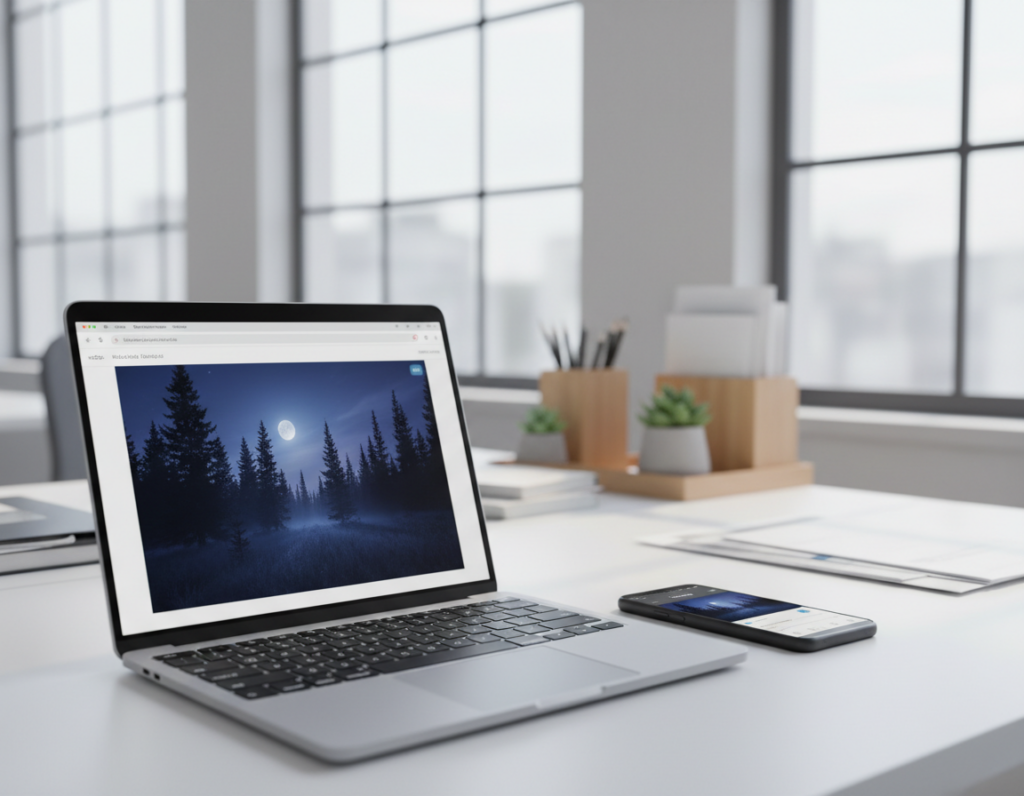
Use email when the total attachments fit common limits and the recipient prefers that workflow. Typical planning numbers matter: Gmail allows 25 MB, Outlook 20 MB, and many Microsoft Exchange Server setups cap at 10 MB. Originals can exceed these caps fast, especially in batches.
Email attachments and typical size limits to plan around
Attach the original files, not an inline preview. Watch for prompts that offer to shrink attachments and pick the largest or original option.
When to send a folder or archive vs individual files
Send individual files for 1–5 photos so recipients can open picks quickly. For larger sets, create a ZIP or RAR archive. ZIP compression is lossless, so it preserves every pixel and keeps file naming and order intact.
File-sharing apps like Filemail for large batches
When totals exceed email limits, use a dedicated file service. Filemail lets you send up to 5 GB free with no registration and does not recompress uploads. Upload once, then email the download link or text it to the client to avoid messenger pipelines that often alter files.
Practical tip: if a recipient needs full edits, deliver originals via a file link or archive so they can verify resolution on a larger screen.
Optimize quality settings in messaging and social media apps
Messaging and social platforms often compress uploads by default; toggling in-app settings lets you send fuller files when shadow detail matters.
WhatsApp: open Settings → Storage and Data → Media Upload Quality. Choose Best quality. Expect longer transfer times on slow networks.
Signal: go to Settings → Data and storage → Sent media quality and pick High. This option keeps more tonal nuance in dark areas.
iMessage: on iPhone open Settings → Messages and turn Low-Quality Image Mode off. That prevents automatic downscaling when sending photos from the device.
Instagram: Settings & privacy → Data usage and media quality → enable Upload at highest quality. Use this option when uploading posts that need fine detail.
X (Twitter): Settings and privacy → Accessibility, display and languages → Data usage. Set high-quality image uploads to Mobile & Wi‑Fi.
- Apple Photos shared albums: these resize to 2048 px per side. Use an iCloud link or cloud provider instead when full resolution matters.
- Fallback: if an app lacks a control, send a cloud link so recipients can download the original file and inspect on a larger screen.
Best practice: change settings before sending and verify the received file on a desktop to confirm retained detail.
Conclusion
Conclusion
Final step: move the original camera file and confirm it on a larger screen to preserve subtle tonal detail in night photography.
Prep and export first, then pick the delivery path that keeps originals: AirDrop, Quick Share, or Wi‑Fi Direct nearby; cloud links like Google Photos, iCloud, or Dropbox for remote; and Filemail for big batches.
Treat messaging and social as optimized sharing, not archival delivery. Toggle app controls in WhatsApp, Signal, iMessage, Instagram, or X when you must use them.
Use a repeatable checklist: verify original export, avoid repeated resaves, send a link for cross‑platform work, and confirm files on desktop. Keep one client‑ready folder and use that link for every transfer.